23 May, 2013

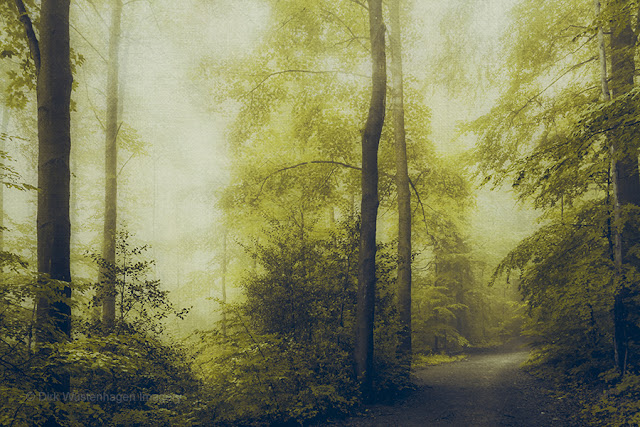
Summer Haze Texture Pack


Hi friends,
as you might have guessed because of my prolonged absence from my blog, I have been very busy and couldn't find the time for a new post. Today I am returning to announce a new pack of textures, that I have been playing around with for the last couple of weeks. I hope I becomes as well received as the last one and you'll be able to create beautiful pictures.


It consists of 27 high resolution textures and you can get it for € 23.90 / app. 30 US$


As mentioned before I processed various photos with some of these textures and today I'll give you a step by step account of one of my latest creations:

Desolation


I used four textures of the new package to make it look that gritty. 


and


I took this photo some years back on a hike through the High Fens on a rainy and foggy November day. The weather, the withered grass and the dead trees were quite spooky. 
It also appeared like some lost & forgotten place where things decay, so the peeling paint texture came to mind and I started working on the photo.

As always here's a screen shot of the layers:


You can guess the evolution of the final result by checking the layers I added from bottom to top.

Tip: If you want to have the structure of a certain texture more dominant just double it and use different blending modes. In this case the stone brushes texture wasn't strong enough, so I first tried to use multiply at 100 %, but it got too dark. But combining a "Multiply"layer with a "Soft light" or "Overlay" layer  did the trick.

Thanks for reading.

Dirk


30 April, 2013

Color Krazy + Freebie

Hello,

last week I have finished a soon to be released sequel to my Spring Texture Pack. You already saw some pictures, that I processed with these, if you know my work from Flickr, 500px, Facebook Page or Google+.

But bef0re I release these there is an update of 10 textures to the Build Your Own Texture Pack.

Last Saturday we had a cold and rainy day, so I browsed through my pics and came across some colourful abstract, that I had completly forgotten about.

I found the colours so appealing, that I started playing around with this file and created 10 very colourful textures that I added to my

Build Your Own Texture Pack.

Here they are:

10 colors textures
Get this 10 colorful textures for only € 9,90 ! 
Dimensions are 4000 x 4000 pixel.


I did a quick processing using wo of the textures on a foggy forest scene:

Spektrum


So it is also time for a free colourful texture, you can download it from my Flickr account here:

COLOR FREEBIE

Color Freebie

Hope you like this one and are inspired to use it!!

Dirk

15 April, 2013

From Fountain to Texture: Making of a texture II

Hello all,

I thought it is about time to give another insight into my texture creating process.
But let me start with a picture that I used this texture on:


Wild Coast La Palma


 Creating Misty Fountain Texture

It is one texture from the Spring Release Pack

It is based on  a shaky long exposure shot of a fountain I took a few years back. It wasn't really anything special:


I really liked the texture of the water and the colours and when I came across it recently, I decided to give it a try and started creating a texture.

First i had to ge rid of the dark parts of the construction, so I loaded the picture into Photoshop and began replacing these parts using the clone stamp and other tools until I got this:


Next thing was to do something about the colours and trying to get a more balanced structure. I decided to duplicate the layer and rotate it by 180°. With a opacity of 50% I got this:


Now I wanted to try to get a more uniform coloring. I thought using a colour gradient overlay might be the right choice. I chose something from yellow to brown and played around with different angles and types of settings and got this:


I made the top part of the texture lighter by adding a white gradient and took two different textures that I used to further refine the texture and the light. A dark photo of slate stone helped to add a vertical structure.


Although I liked the outcome, I thought a texture based on a fountain ought to have a colour that reminds people of actual water. I added a Selective Colour layer and began manipulating the colours - less red and yellow and mor cyan and blue. The colours now were to my liking. I made the whole thing a bit lighter and tweaked the blue a and yellow a bit and got my final texture:

Misty Fountain


This is what the actual layers in Photoshop look like:


I also used the texture on the following pictures, but I also used other textures from my various packs...


10% Promotion

I am prolonging my texture promotion until April 30, 2013!!
If you enter the couupon code

AprilFun

at the check out you'll get 10% discount on all purchases!!!

My Texture Packs for sale


Hope you found this interesting & thanks for reading!

Dirk

28 March, 2013

bad dream - freebie & easter egg promotion

Hello all,
it is time for an easter tret. I my case this means a texture freebie.
I admit it is a quite grungy give away but works well on dark scenes.
As I was in the mood for some eerie dark work I applied it on this picture:

Bad Dream


The texture is more or less b&w so it works quite well as an overlay. I often use these with blending modes such as Lighten, Screen or even Normal.
In fact I used the Lighten blending mode on this picture to add structures and some fake shadows to the darker areas.


Please click on the texture to download or on this link:


Dark Promise
Aus Free textures
This texture is part of my pack of Medium Sized Textures that you can purchase over on my homepage now for a

20 % discount* if your enter the coupon code : EASTEREGG

This offer is valid thru April 16, 2013


*Discount code also works on all other texture packs, except on single texture downloads

Be creative and have a wonderful holiday!!!

Dirk

21 March, 2013

Making of - Contis - Plage on a cloudy Day

Hi all,
following yesterday's post I once again wanted to give you a step by step account on the processing of a picture.

This time it's

"Contis-Plage" on a Cloudy Day"
Contis - Plage on a cloudy day


1. Processing in Lightroom 

I took the pictures that I used with my old Canon Ixus 70, so I had to deal with jpg-files, which limited my processing in Lightroom. Fortunately I took these shots with the intention of merging them together in Photoshop to get a bigger pic in the end.
 
Even though it wasn't a typical sunny day  I wanted to retain the holiday feeling and thought soft almost pastel tones might be the correct way to go.

SOOC - Version

The sharpness in this was quite good and there was no noise to speak of, so I didn't have to do any sharpening and only a bit of noise reduction after the processing.
Over all the pictures were much too dark andto bring up the darker middle tones. Additionally I used a gradient filter for the sky to darken the clouds a bit and to get more depth. I also pushed the yellow luminance and added a partial toning - dark blue for the dark tones a light yellow tone for the lights. After a lot of trying this and that I finally was satisfied with the colours and light:

Lightroom processing


2. Creating the Vertorama / horizontal panorama

I exported these two pictures and loaded them into Photoshop. As my standpoint was when I took these was the same and I had almost half of the pictures overlapping I didn't expect any problems stitching these two pictures together. All I had to do was to go to PS Photomerge - tool and let the automatic merge the pictures. I made a square crop of the merging result and began to texturize the picture.

3. Adding textures

The further processing's focus now lay on pushing the light a little bit more with the help of textures as well as adding a sublte colour contrast.

I prepared a screen shot of the PS layers for you to show what I did:

Layers


 As you can see I chose three textures
- the first is one with a very fine structure and a neutral tone. The blending mode "Soft Light" helped to enhance the overall brightness while adding a subtle texture to the darker tones in the picture, especially on the dark clouds.
- the second almost white one pushed the light to its limits reducing the contrast, but that is something one can regain later with the help of curves or levels.
- the third one I took because of the gradient from silvery to dark blue. Overlay at 66% gave the clouds a wonderful dark blue tone and added some more texture while keeping the yellow / brighter tones.

As pointed out before I used a curves layer to work on the contrast until I was satisfied.

4. Colour Correction

I wanted to have  a subtle, but almost perfect colour contrast. I sometimes check the colours in my picture with the help of a colour wheel to see whether I can tweak them to a perfect harmony. I discovered the following side that I find very helpful:

colorschemedesigner.com

You can copy the colour code in Photoshop and see which colours go with it. Its quite helpful and sometimes a great inspiration.

There wasn't much to correct on the colors, I only took a bit of red out of the yellow to achieve the suggested harmony of the color wheel.


Hopefully this making of was helpful and please check out my textures if you like.

Thanks!


20 March, 2013

Summer Feeling - softly processed summer impressions

Hi all,
looking out of the window I once again have to witness snow piling up on streets, paths and rooftops. That inspired me to take a look at some rather old shots I took with my point & shoot camaras 5 years ago in France.

I wanted to have light and soft color tones, so I decided to only use fine textures with neutral or light tones.

Most of the time I only used one or two textures from my latest Spring Release Pack

I think occasionally I tested a texture that will be inclued in the next pack.

So, enjoy summer....


Beach on a cloudy day
In almost all the pictures I blended the texture using "Soft Light", "Overlay" or even "Lighten" to get my soft texture look. Last step was always correcting contrast with the help of the levels tool.


Surf School

Trail to the beach

Waves

Dune


Have a nice week,

Dirk

06 March, 2013

Workflow - Creating a BLUR-Scape

Hello,
Today I'd like to demonstrate how I usually create my blurry abstract seascapes and forests. I am totally fascinated by soft smooth surfaces, so a few years ago I started using Photoshop's motion blur tool and the radial blur to soften parts of my photos. If properly used this goes beyond the shallow effect and can add to the overall feeling of a picture. Hopefully I achieved this with some of my works, but it is sometimes a quite difficil undertaking.

To show you how I technically achieve this, I chose the following photo of a rock on the beach of Puerto Naos on the island of La Palma:
Please move your mouse over the picture to see the before/after effect!


Square Rock Puerto Naos


Preparing the original file

The original RAW-file was quite dark, so I had to some adjustments in Lightroom. I also played around with the colors and was quite happy with the slightly muted vintage tones I got. Before I exported the image to Photoshop, I made a square crop and still wasn't quite shure what to do with the picture.
Manipulate it by adding clouds, grungy textures, birds....?
Instead I opted for smooth water, because I didn't like the water's texture.

Blurring the water

It is quite essential to achieve an exact selection of the area that you want to blur. In this case it was easier to select everything around the water than the water itself. I am lazy, so I used PS Quick Selection tool. After adjusting the  selection (soft borders / round edges) I inverted the selection.
Now I had the water selected and hit "CMD J" and got a new layer (no 3 called "water blur") with only the water.


I went to filters-blur-motion blur, chose 0° angle and the highest blur setting and the water went from fine ripples to smooth surface.
Unfortunately this didn't do the trick, although I used a layer mask to cover the non-sea parts.
The blur didn't cover the edges of the rock which looked quite ugly:


I had the idea to copy the backgound layer and applied the motion blur on the whole picture. As I only wanted the water to be blurry, I again used a layer mask to show only the water and finally got what I wanted.

Texturizing

I felt that the picture could use some additional textures to make it look even more vintage. Tones and structures of two textures from the Spring Release Texture Pack seemed to be perfect for this. As you can take from the layers picture I had not much to do until I was satisfied with the result.
Only one layer in Multily mode and the other in Overlay to get more contrast.

I finished the whole with some light and contrast adjustments using the curves tool.

That's all!
Thanks for reading!
Dirk